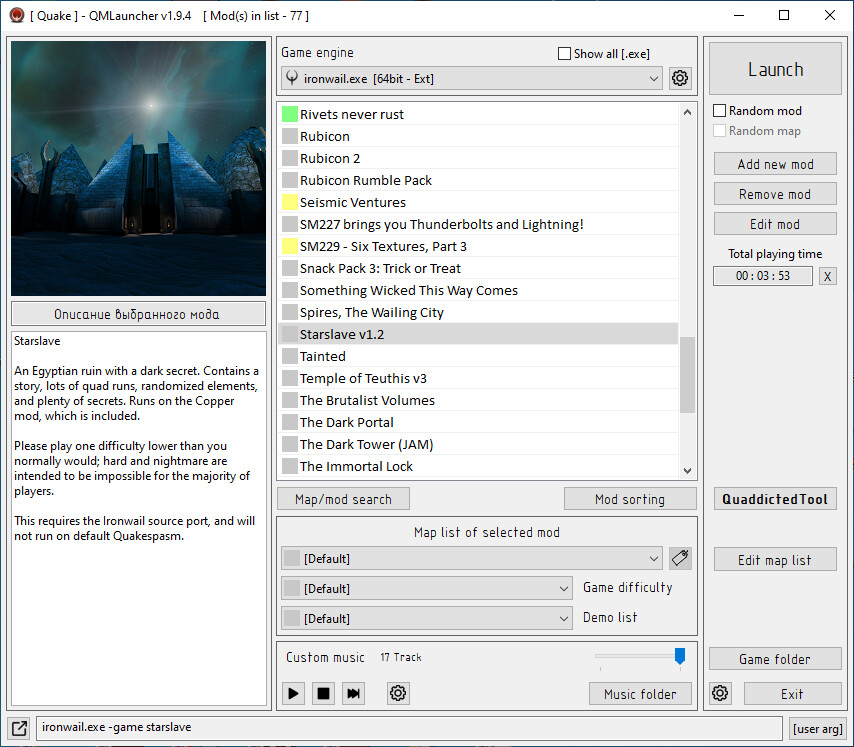
QMLauncher v1.9.8 - launcher for Quake and Quake2.
Allows you to attach a picture to each mod, add a description, color label, comment.
Add/edit label - right mouse button in the list of mods.
Add/edit comment - edit the inscription 'Description of the selected mod' located between the cover and the description of the mod.
Allows you to run random mod, map and difficulty.
For each mod, the time spent in the game is calculated and displayed.
You can set your own command line arguments for the engine, as well as separately for each mod.
Ability to assign a different engine for each mod (if there are several engines in the game folder).
In the add-editing mod window, you can select the engine to run this mod.
You can use sourceport engines without copying them to the game folder (v1.8.0+).
Click the button to the right of the engine list and add the desired engine.
Scans maps in the mod folder and in .pak files.
In the maps sorting window, you can sort, rename, and hide maps.
Hidden maps will not appear in the map list and will not be selected in random map launch mode.
Ability to install mods from .ZIP .RAR .7Z archives. 7Zip archivator is used.
When installing from an archive, if next to the archive there is a .txt file and a .jpg file with the same name as the archive, the description and cover of the mod are taken from these files.
The first line in the .txt file is considered the name of the mod.
You can use the launcher in conjunction with the QuaddictedTool utility.
Click the 'QuaddictedTool' button and select the QuaddictedTool.exe file.
To select another QuaddictedTool.exe file, press the button while holding down the Shift key.
To quickly install an archive from QuaddictedTool - in QuaddictedTool, click 'Install archive' and in QMLauncher, in the add mod window, click the install from archive button.
When installing an archive from QuaddictedTool, the cover and description are added automatically.
If you are using QMLauncher v1.9.4+, then when you click the “Install archive” button, the installation will start automatically if QMLauncher is currently running.
If QuaddictedTool is launched from QMLauncher, the installed archives will be shown in green in the left column.
You can include your own music for maps that do not have music.
Hotkeys for controls (only if the game is running)
Shift+PageUp/PageDown - volume up/down.
Shift+Home - play/stop music.
Shift+End - next track.
Supported music formats: .wav .flac .ogg.
Drag&Drop is supported for archives and images.
In the main window:
You can install a mod from an archive by dragging the archive from Explorer to the list of mods.
You can change the default cover by dragging the file from Explorer (the current cover should be the default cover!).
You can reset the default cover by right-clicking and selecting "Restore default cover" (the current cover should be the default cover!).
In the add mod window:
You can install a mod from an archive by dragging the archive from Explorer to the list of folders of installed mods.
You can change the cover for the mod by dragging the image from the explorer.
In the mod editing window:
You can change the cover for the mod by dragging the image from the explorer.
There is English and Russian localization.
Tested and works with Quakespasm,Quakespasm spiked,Ironwail,FTEqw engines.
Works with Quake I-II Enhanced.
Installation:
Copy QMLauncher.exe to the Quake or Quake2 game folder and run it.
v1.9.8
Improved the appearance of color labels.
Fixed an issue with high launcher CPU load when unpacking archives.
Added the ability to toggle the mod/map search mode in the search window using the left/right arrow keys.
Added the ability to skip intro videos in Quake 2021 Remastered.
Added a progress bar for music playing in the launcher.
Added the ability to set default and mod cover in the main window by dragging and dropping from Windows Explorer.
Several minor fixes and optimizations
Download link v1.9.8